Page Numbers & Layout Rules
Set up your pages correctly so your book reads cleanly and looks professionally formatted.
Where Page Numbers Go
- Bottom center (most common for fiction)
- Top outer corners (common in nonfiction)
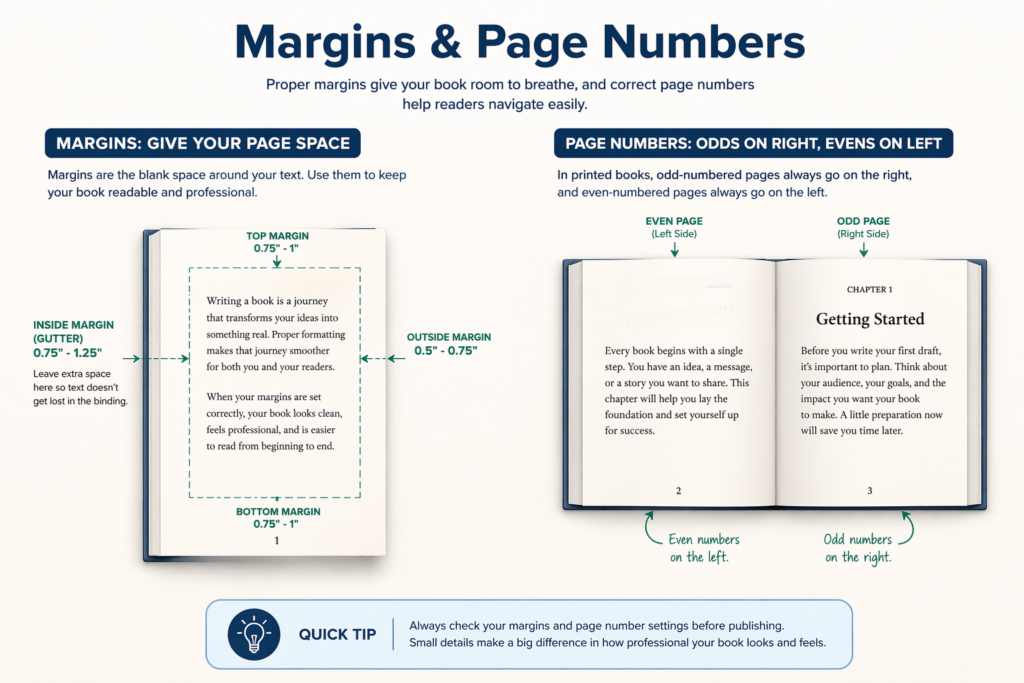
Facing pages rule:
- Left page → number on the left side
- Right page → number on the right side
When Page Numbers Start
This is one of the most important setup steps in your book formatting.
Important:
- Do NOT show page numbers on front matter like:
- title page
- copyright page
- dedication
Best practice:
- Start visible numbering at Chapter 1
- Chapter 1 is typically Page 1
How to Start Page Numbers at Chapter 1
In Word:
- Add a section break before Chapter 1
- Go to Insert → Page Number
- Choose location
- Click Format Page Numbers
- Set Start at: 1
This allows your front matter to remain unnumbered or use Roman numerals.
For: Left/Right Page Alignment
How to Set Different Left & Right Page Numbers
In Word:
- Double-click header/footer
- Enable Different Odd & Even Pages
- Set:
- Odd pages → right side
- Even pages → left side
This is HUGE for realism. Most people don’t know this exists.
Front Matter Numbering (Optional)
If you choose to number front matter:
- Use Roman numerals (i, ii, iii, iv…)
Or:
- Leave them unnumbered entirely (common for fiction)
Chapter Opening Pages
Chapter opening pages are formatted differently from regular pages.
On chapter start pages:
- Page number is usually hidden
- Even though it still counts internally
How to Hide Page Numbers (Without Breaking Sequence)
In Word (most common):
- Place your cursor on the chapter page
- Go to Layout → Breaks → Section Break (Next Page)
- Double-click the header/footer area
- Turn OFF “Link to Previous”
- Delete the page number on that page
The page number is hidden, but numbering continues correctly.
In Google Docs:
- Insert a section break before the chapter
- Go to header/footer
- Uncheck “Link to previous”
- Remove the number
If you skip the section break, removing the number will remove it everywhere.
Example layout: Notice how page numbers alternate and Chapter 1 begins on the right-hand page.
Headers (Running Heads)
Headers are optional, but commonly used in nonfiction books.
Examples:
- Author name (left pages)
- Book title (right pages)
For fiction:
- Often skipped for a cleaner reading experience
For nonfiction:
- Frequently used
For: Headers (Running Heads)
How to Add Headers (Optional)
In Word:
- Insert → Header
- Enable:
- Different First Page
- Different Odd & Even Pages
- Add:
- Left pages → Author name
- Right pages → Book title
Margin & Spacing Rules
Make sure:
- Page numbers are not too close to the edge
- Leave enough space for trimming
- Ensure margins are mirrored for print (inside vs outside)
Rule of thumb:
- At least 0.5″ from the edge
- Respect your gutter margin
Common Mistakes to Avoid
These mistakes can make your book look unprofessional immediately:
- ❌ Starting page numbers on the title page
- ❌ Inconsistent placement (top on one page, bottom on another)
- ❌ Numbers too close to the trim edge
- ❌ Forgetting left/right page alignment
- ❌ Showing numbers on chapter openers
Keep It Consistent
Your layout should:
- follow the same rules across the entire book
- use the same font and size for numbers
- align perfectly on every page
💡 Quick Note
Your reader may not notice perfect formatting—but they will notice when something feels off.