Cover Design (Print & Digital)
Design a professional cover that fits your format—whether you're publishing digitally, in print, or both.
Start Here: One Cover, Two Formats
Your book cover requirements depend on how you’re publishing:
- eBook (Digital) → Front cover only
- Print (Paperback/Hardcover) → Full wrap (front, spine, back)
Design Tips (Applies to Both)
- Use a readable, genre-appropriate font
- Keep title hierarchy clear (Title > Subtitle > Author)
- Avoid overcrowding
- Make sure it looks good as a thumbnail
Digital Cover (eBook)
What You Need
- Front cover only
- High-resolution image (recommended: 300 DPI)
- Common size: 1600 x 2560 pixels (or similar 1.6:1 ratio)
Key Guidelines
- Title must be readable at small sizes (thumbnail view)
- Keep design clean and uncluttered
- Use strong contrast for visibility
When You’re Done
If you’re only publishing digitally, you can move on after this section.
Print Cover (Paperback / Hardcover)
What You Need
- Full wrap cover:
- Back cover
- Spine
- Front cover
Spine Width (Important)
Your spine width depends on:
- final page count
- paper type
Choosing Your Paper Type
When generating your cover template, you’ll be asked to select a paper type.
Most common options:
- Cream paper
Best for novels and fiction
→ easier on the eyes for long reading - White paper
Best for non-fiction, manuals, and books with images
→ cleaner and more contrast for visuals
Simple rule:
- Fiction → Cream
- Non-fiction / image-heavy → White
⚠️ Important
Your paper type affects:
- spine width
- final page count slightly
- overall print appearance
Make sure this matches what you choose during your print setup in Amazon KDP.
If you’re unsure, cream paper is the most commonly used option for standard books.
Use Amazon’s Cover Template (Recommended)
Amazon provides a free cover template generator that calculates your exact cover dimensions based on your trim size and page count.
- Go to Amazon KDP Cover Calculator (right click and open in a new tab if needed)
- Enter:
- trim size
- page count
- paper type
- Download the template
- Use it as a guide for your full cover design
This template ensures your spine width, margins, and barcode placement are correct for printing.
Using this template is strongly recommended—guessing dimensions often leads to print errors.
You must finalize your book layout first before creating your print cover.
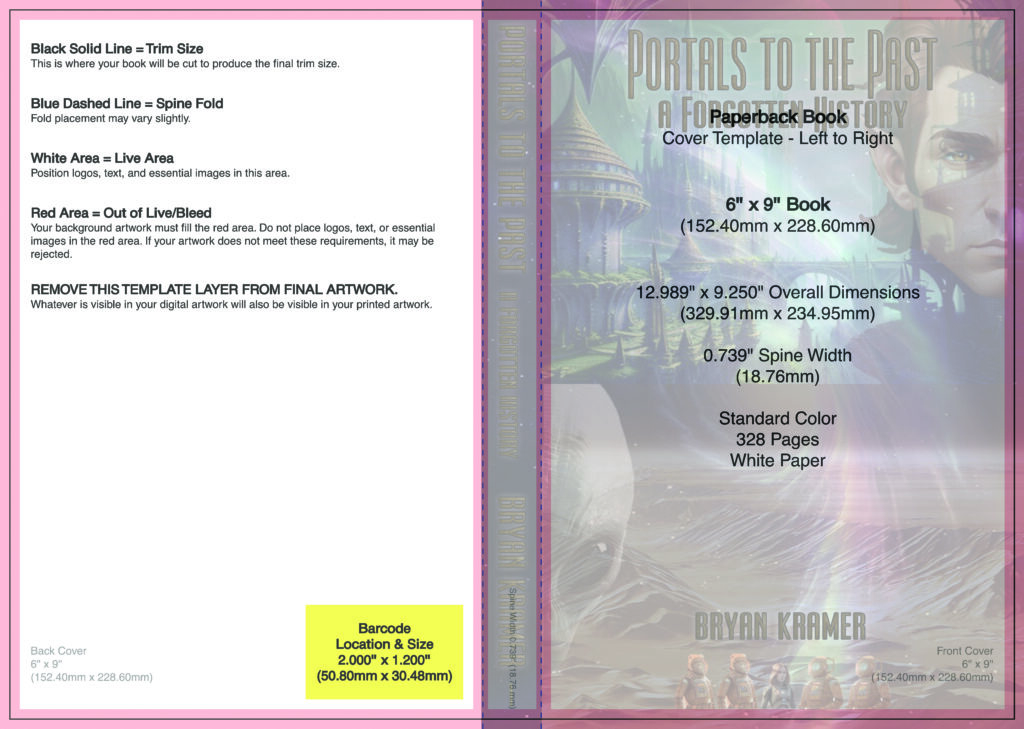
Example Amazon cover template layout:
This is what your full print cover looks like before it’s wrapped around the book.
Creating Your Cover (Tools & Options)
You’ll need a design tool to create your book cover using the template above.
If you have design software:
- Adobe Photoshop
- Adobe Illustrator
- Affinity Photo / Designer
You can use the Amazon template directly in these programs.
If you don’t have design software:
You still have good options:
- Canva
Beginner-friendly and widely used
→ Good for both digital and simple print covers - Photopea
Free, browser-based Photoshop alternative
→ Works well with Amazon templates - GIMP
Free desktop image editor
→ More powerful, but slightly steeper learning curve
Need Help With Your Cover?
If you’re not comfortable designing your cover yourself, you’re not alone.
You can visit the Creative Showcase in the Discussion Hub and:
- ask questions
- get feedback on your design
- connect with artists who may be able to help
This is a great place to get guidance or collaborate with others in the community.
Simple Recommendation
If you’re new:
- Start with Canva for ease of use
- Use Photopea if you want more control without paying
Important
Make sure your final design:
- matches your exact template dimensions
- is exported at high resolution (300 DPI)
- does not move or resize the template guides
Cover Layout Structure
This is how your full print cover is arranged when laid flat.
Your print cover includes:
- Back cover (left)
- Spine (center)
- Front cover (right)
Barcode (Required for Retail)
- Required for most print books
- Placed on the bottom right of the back cover
- Typically generated through your ISBN provider (Bowker) or platform
Make sure the barcode area remains clear and is not covered by your design.
The barcode should not overlap important design elements.
This connects directly to your ISBN setup
Bleed & Safe Zones
- Bleed area → extends beyond trim edge (prevents white edges)
- Safe zone → keep text away from edges and spine
These are required for proper printing
⚠️ Important: Match Your Final Layout
Your print cover must match:
- trim size
- page count
- spine width
Creating your cover too early will result in incorrect dimensions.
Print vs Digital Cover Requirements
Print:
- Full wrap cover
- Spine required
- Barcode required
Digital:
- Front cover only
- No spine
- No barcode
Your cover is the first thing readers see—getting it right matters as much as the content inside.