Checking Your Ebook on Devices
Checking Your Ebook on Devices
After previewing your ebook, the next step is testing it on real devices and apps.
Kindle Previewer gives a strong simulation—but real devices can still display things differently.
What You’re Doing Here
You’re testing how your ebook behaves in real reading environments.
This includes:
- Different screen sizes
- Different apps
- Real user interaction
This is your final confidence check before publishing.
Test on Multiple Devices (If Possible)
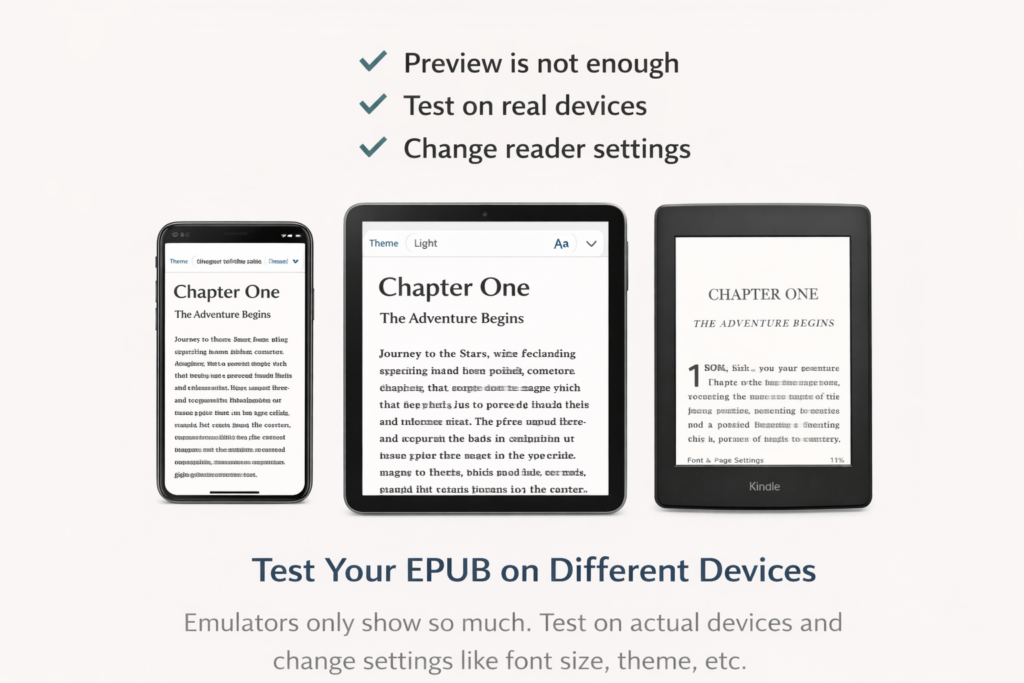
Try to view your ebook on at least one of the following:
- Phone
- Tablet
- Kindle device
Even one additional device can reveal issues you didn’t see in Previewer.
Test in Real Reading Apps
If possible, test your ebook in at least one real reading app.
Most common:
- Kindle app (recommended)
Optional (if available):
- Apple Books (iPhone / iPad)
- Google Play Books (Android devices)
You don’t need to test on every platform—just enough to confirm your book behaves correctly in a real reading environment.
If you don’t have access to multiple devices, testing in Kindle Previewer and the Kindle app is more than enough for most books.
How to Load Your Ebook
Option 1: Send to Kindle
- Email your EPUB to your Kindle email
- Or use Amazon’s “Send to Kindle” feature
Option 2: Open Directly in Apps
- Transfer the EPUB to your device
- Open it with a reading app
This simulates how readers will actually access your book.
What to Check
Scroll through your book and look for:
Text:
- Paragraph spacing
- Indentation
- Font consistency
Structure:
- Chapter breaks
- Navigation menu
- Table of contents
Images (if used):
- Proper scaling
- Clear display
- Spacing around images
Focus on how it feels to read, not just how it looks.
Change Reader Settings
Test different settings within the app:
- Increase and decrease font size
- Switch between light and dark mode
- Try different font styles
Your ebook should remain clean and readable in all cases.
Watch for Real-World Issues
Some issues only show up on actual devices:
- Unexpected spacing shifts
- Text wrapping differently
- Images resizing oddly
- Navigation behaving slightly off
These are easier to catch here than after publishing.
What to Do If You Find Issues
Do NOT try to fix the EPUB directly.
Instead:
- Go back to your source file
- Make the correction
- Re-export your EPUB
- Test again
This keeps your workflow clean and consistent.
The Goal
Your ebook should:
- Display cleanly on different devices
- Adapt to different settings
- Feel natural to read
Key Takeaway
If your ebook works well on real devices, it’s ready for readers.