Kindle Formatting (KDP Upload Prep)
Kindle Formatting (KDP Upload Prep)
Once you have a working EPUB file, the next step is preparing it for upload to Amazon Kindle Direct Publishing.
This step ensures your ebook displays correctly on Kindle devices and passes KDP upload checks.
What You’re Doing Here
You’re not reformatting your book—you’re verifying how your EPUB behaves on Kindle.
After conversion, this is where you:
- Catch formatting issues
- Confirm navigation works
- Fix anything that didn’t carry over correctly
Conversion creates the file.
This step makes sure it works correctly on Kindle.
It’s normal to go back and re-export your file multiple times during this step
Check Your Table of Contents
Check for Page Numbers
Ebooks do not use fixed pages, so your table of contents should not include page numbers.
❌ Remove:
- Chapter titles with page numbers
- Manually typed page references
✅ Keep:
- Chapter titles only
- Clickable links (if using a visible TOC)
Page numbers don’t function in ebooks and can confuse readers.
Step 1: Open your EPUB in Kindle Previewer
- Load your EPUB file into Kindle Previewer
Step 2: Open the navigation panel
- Look for the Table of Contents / Navigation menu
- This shows how Kindle reads your chapters
Step 3: Test your chapters
Click through several entries and confirm:
- Each chapter opens correctly
- Chapters are in the correct order
- Titles match your chapter headings
Step 4: Check your in-book TOC (if included)
If your book has a visible table of contents page:
- Click each chapter link
- Make sure it jumps to the correct section
If anything doesn’t work, the issue is usually:
- Missing or incorrect heading styles
- Incorrect chapter structure
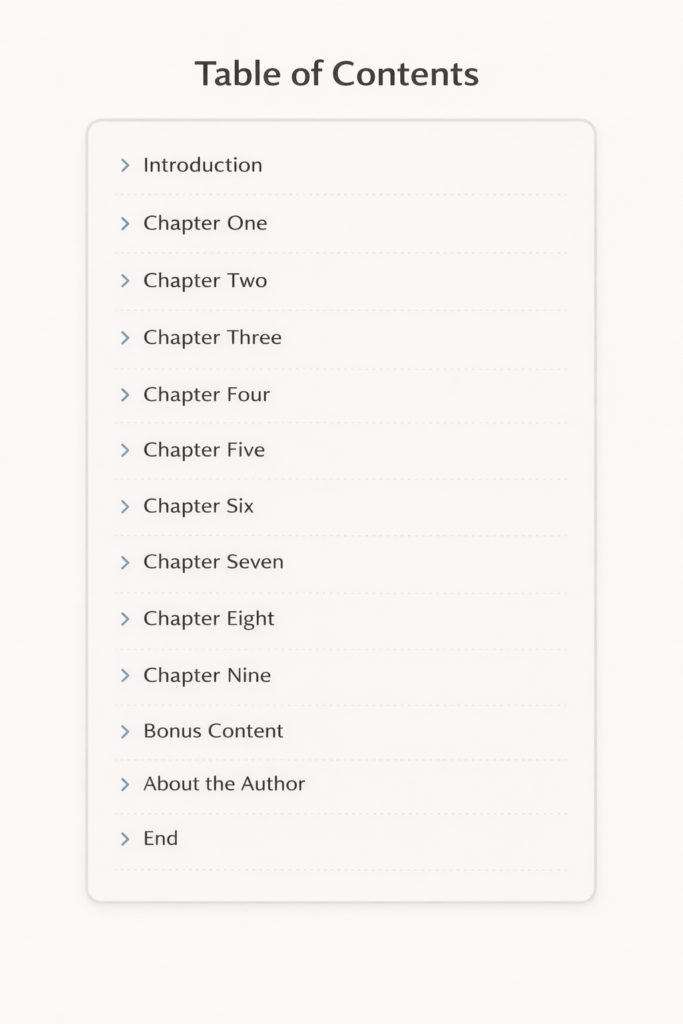
Sample Table of Contents
Verify Chapter Breaks
Use Kindle Previewer to move between chapters and confirm each one starts on a new screen.
Each chapter should:
- Start on a new screen
- Not run into the previous chapter
Check for:
- Missing breaks
- Extra blank pages
- Inconsistent spacing
Chapter breaks are one of the most common issues
Check Formatting Consistency
Scroll through your EPUB and look for:
- Uneven paragraph spacing
- Inconsistent indentation
- Font inconsistencies
- Misaligned text
Small inconsistencies become more noticeable on Kindle.
Check Images (If Used)
If your book includes images:
- Make sure they load properly
- Confirm they scale correctly
- Check spacing around them
Images often shift slightly after conversion.
Use Kindle Previewer
Kindle Previewer allows you to:
- See how your book looks on Kindle devices
- Test navigation
- Catch formatting issues before upload
This is one of the most important tools in this step—use it before uploading.
What NOT to Do
- Don’t upload without previewing
- Don’t ignore small formatting issues
- Don’t try to fix problems directly in the EPUB
Always fix issues in your source file, then re-export.
Keep Your Workflow Clean
Follow this process:
Edit → Export → Preview → Fix → Re-export
The Goal
You want an EPUB file that:
- Displays correctly on Kindle
- Navigates smoothly
- Passes KDP checks without issues