Converting to EPUB
Converting to EPUB
Once your manuscript is clean and properly formatted, the next step is converting it into an EPUB file.
EPUB is the standard file format used for publishing across most ebook platforms.
What You’re Doing Here
You’re taking your formatted manuscript and turning it into a portable ebook file.
This file will:
- Be uploaded to publishing platforms
- Be converted for different devices
- Serve as your final working version
Everything you’ve done so far leads to this step.
Choose a Conversion Method
There are a few common ways to create an EPUB file.
Option 1: Export from Your Writing Tool (If Supported)
Some tools allow direct EPUB export.
Examples include:
- LibreOffice (free to download and use)
- Scrivener
This is often the simplest and most reliable method.
Option 2: Use a Conversion Tool
Popular tools include:
- Calibre
- Kindle Previewer
These allow you to:
- Convert files to EPUB
- Preview your ebook
- Make adjustments if needed
Option 3: Export from Word (Limited Support)
Microsoft Word may allow EPUB export depending on your version.
However:
- Not all versions support it
- Formatting results can vary
If EPUB export isn’t available or looks incorrect, use a dedicated tool instead.
Step-by-Step: Exporting to EPUB
Step 1: Final Save
- Save your manuscript file
- Use a clean working format (.docx or .odt)
Step 2: Open Your Conversion Tool
- Open your document in a tool that supports EPUB export (such as LibreOffice or another compatible program)
- Examples: LibreOffice or other compatible software
Step 3: Export to EPUB
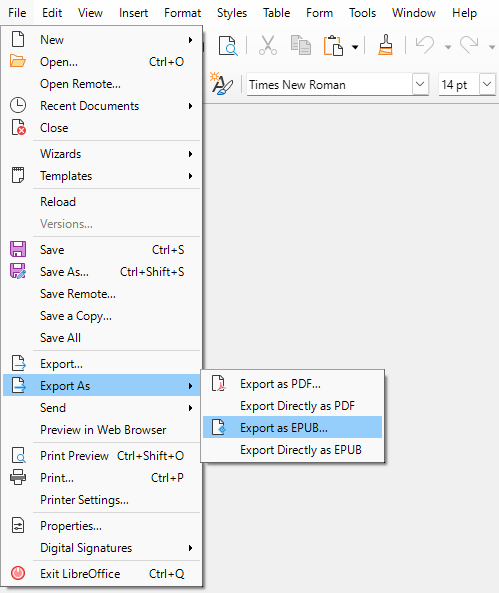
- Go to File → Export (or equivalent)
- Select EPUB as the file type
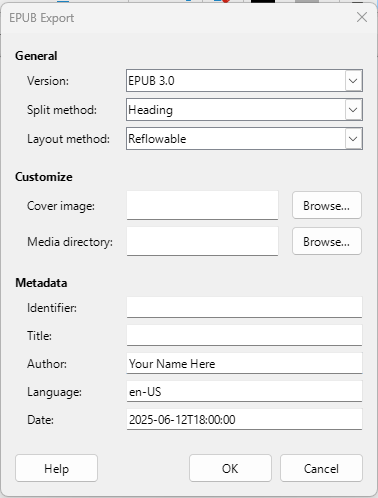
Step 4: Choose Settings
- Keep default settings for most books
- Make sure headings are recognized for navigation
Step 5: Export
- Save your EPUB file
- Give it a clear, final name
You now have a working EPUB file.
Example export from Libre Office Writer
Common Conversion Issues
Even with a clean manuscript, issues can appear after conversion.
Watch for:
- Extra spacing between paragraphs
- Missing or incorrect chapter breaks
- Images shifting position
- Navigation/TOC issues
This is normal—conversion is where issues often reveal themselves.
What NOT to Do
- Don’t convert multiple times unnecessarily
- Don’t switch between too many tools
- Don’t ignore small formatting issues
Each conversion can introduce new formatting inconsistencies.
Keep Your Source File Clean
Always keep your original document:
- Your .docx file is your master file
- Make changes there—not directly in EPUB
Edit → Re-export → Test
That’s the workflow.
The Goal
You want a clean EPUB file that:
- Converts properly
- Displays consistently
- Is ready for testing and upload
Key Takeaway
A clean manuscript leads to a clean EPUB—conversion should be simple, not complicated.