Table of Contents (Print Books)
Create a clean, accurate Table of Contents that matches your final layout.
What a Table of Contents Does
- Lists chapters or sections
- Shows page numbers
- Helps readers navigate your book
Where the Table of Contents Goes
- After:
- Title page
- Copyright page
- Before:
- Chapter 1
This places your Table of Contents at the front of your book where readers expect it.
Important: Create It LAST
This is one of your most important sections.
Say clearly:
Your Table of Contents should be created after your book layout is finalized.
Why:
- Page numbers must be correct
- Chapters must be in final position
Creating it too early will result in incorrect page numbers.
How to Create a TOC (Word)
Keep it simple and actionable:
Automatic method (recommended):
- Apply Heading styles to your chapter titles
- Heading 1 → Chapter titles
- Go to:
- References → Table of Contents
- Choose a style
- Insert
Updating later:
- Right-click TOC → Update Field
- Update page numbers only
- OR update entire table
Manual vs Automatic (quick clarity)
Automatic (recommended)
- Updates easily ✔
- keeps formatting consistent automatically ✔
Manual
- Full control ✔
- BUT:
- must update everything yourself ❌
- easy to break ❌
What to Include in Your TOC
- Chapter titles
- Section titles (optional)
Optional:
- Front matter (sometimes)
- Back matter (optional)
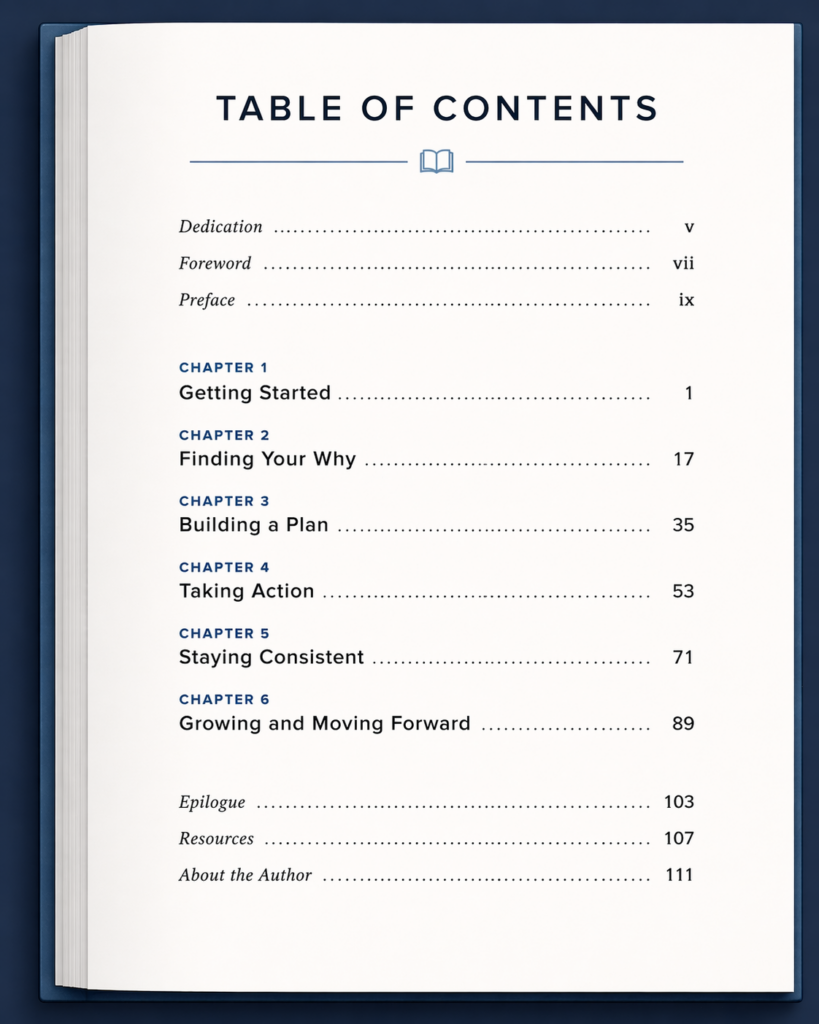
Example Table of Contents layout:
What NOT to Do
These mistakes can make your Table of Contents inaccurate or misleading:
- ❌ Don’t create it before layout is final
- ❌ Don’t type it manually unless necessary
- ❌ Don’t forget to update before export
Print vs Digital Difference (important crossover)
This is where you bridge paths.
Print:
- Page numbers
- Static (fixed page numbers)
Digital (ebook):
- Clickable links
- No fixed page numbers